Why is your JPG larger than the original HEIC?
Converting a photo for compatibility does not guarantee a smaller file. Check what changed before lowering the quality.
Updated 2026-10-26
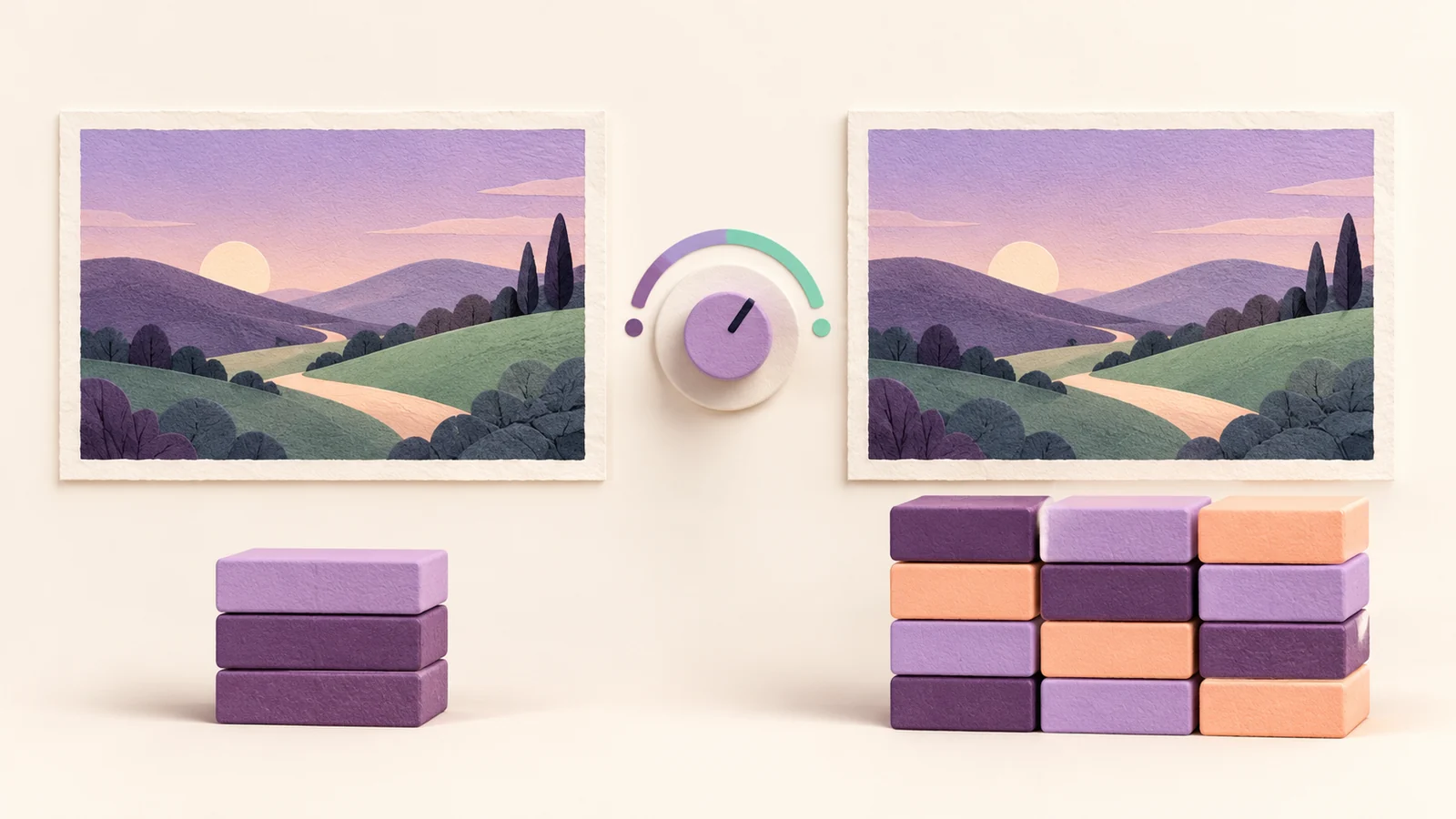
A JPG can be larger than the HEIC photo it came from. HEIF uses more efficient compression than JPEG, as Apple explains, so changing to a more widely accepted format can increase the file's storage size. A larger output does not, by itself, mean the conversion failed.
Check the saved file's pixel dimensions and file size separately. Then decide whether you need a smaller copy or simply a JPG the receiving app can open.
Separate file size from photo dimensions
File size is the amount of storage the file occupies, usually shown in KB or MB. Pixel dimensions describe the image's width and height. Two files with the same pixel dimensions can take up different amounts of storage.
Adobe's HEIC and JPEG comparison describes differences in compression, storage and compatibility. JPEG also uses lossy compression. Making the file larger does not recover detail already absent from the source.
Before changing anything, record what you have:
| Item to compare | Why it matters |
|---|---|
| Original HEIC file size | Your starting point for storage use. |
| Downloaded JPG file size | The value to compare with an attachment or upload limit. |
| Width and height of both images | Whether you are comparing the same pixel dimensions. |
| Appearance at the intended viewing size | Whether the copy still works for its purpose. |
Do not compare the size of a ZIP archive with the size of one image inside it. Extract a batch download and inspect the individual JPG.
Try another quality setting from the original
Convert HEIC to JPG's store description documents adjustable JPG quality, with a default setting of 95%. Treat that as an encoder setting, not a promise about the output's size or the percentage of original detail retained.
For a useful comparison:
- Keep the HEIC original and choose one representative photo.
- In the extension, choose JPG and set the quality before conversion starts.
- Convert it and record the saved JPG's size.
- Select a lower quality setting and convert the same HEIC again.
- Compare the two JPGs at the size where someone will view them.
Use distinguishable filenames or separate folders so you know which setting produced each copy. The listing says conversion starts when files are added, so check the format and quality controls when preparing each run.
Record each run in a short log. In the notes column, record pixel dimensions and anything you notice at the intended viewing size.
| Copy | JPG quality setting | File size | Notes |
|---|---|---|---|
| Original HEIC | Not applicable | Fill in | Fill in |
| First JPG | Fill in | Fill in | Fill in |
| Second JPG | Fill in | Fill in | Fill in |
Choose the copy by what it needs to do
For an upload, read the destination's size and dimension limits first. A file may meet the JPG requirement and still exceed its storage limit. Conversely, you may have no reason to make a photo smaller when the destination already accepts it.
Inspect fine text, edges and areas with subtle shading before lowering quality further. Check each kind of photo you intend to convert; one successful sample does not establish the result for every image.
If reducing quality makes the image unsuitable before it meets the limit, consider a separate image editor with resizing controls. Check the destination's required dimensions before reducing width and height. The extension's description does not document a pixel-resizing tool.
For an actual rejection, use the HEIC upload troubleshooting guide. If you are still choosing between JPG and PNG, see the output format comparison.
Keep the HEIC when you finish
Keep each comparison based on the HEIC original. Repeatedly editing and saving a JPG can discard more image information; Adobe describes this limitation of lossy JPEG encoding.
Also check any metadata you need. The extension warns that dates, location and other EXIF fields may not survive conversion completely. A larger JPG or a higher quality setting does not prove that those fields are intact.
Once you have a suitable sample, apply the chosen settings to the rest of the photos and inspect representative results. The batch conversion guide covers keeping track of a collection. Retain the originals for later edits or a different export.